Tuesday, 7 May 2019

Dell switches VLT Configuration


Spanning tree is enabled by default and recommended to prevent loops in VLT domain. RPVST+ (default) and RSTP modes are supported on VLT ports.

OS10# configure terminal 
OS10(config)# spanning-tree mode rstp [or] rapid-pvst


OS10# configure terminal
Enter configuration mode.
OS10(config)# interface range ethernet 1/1/1-1/1/2
Enter interface configuration mode
OS10(conf-range-eth1/1/1-1/1/2)# no switchport
Remove switchport from the VLTi ports.
OS10(config)# vlt-domain 1
Create a VLT domain by configuring the same domain ID on each peer.
OS10(conf-vlt-1)# discovery-interface ethernet 1/1/1
Set the VLTi interfaces.
OS10(conf-vlt-1)# discovery-interface ethernet 1/1/2
Set the VLTi interfaces.


The "VLT time interval" optional is not covered in this article. Changing the VLT time interval is based on design requirements. In certain environments, the timer may need to be increased to ensure routing protocols come up before VLT converges to prevent possible outages.

OS10# configure terminal
Enter configuration mode.
OS10(config)# vlt-domain 1
Enter VLT domain configuration mode.


OS10(conf-vlt-1)# backup destination 1.1.1.2 (primary peer)
OS10(conf-vlt-1)# backup destination 1.1.1.1 (secondary peer)
Specify the management IP address of the peer switch.
This sets up the Heartbeat that monitors system up.


Each VLT domain in the network must use a separate unique mac address.


The following example uses ethernet 1/1/10 on both VLT peers, in a LACP Port-Channel, to connect to one end device. 
OS10# configure terminal
Enter configuration mode.
OS10(config)# interface port-channel 5
Specify the LAG to the end device. Use the same LAG number on both peers.
OS10(conf-if-po-5)# vlt-port-channel 5
Specify the LAG as VLT.
OS10(conf-if-po-5)# exit
Exit
OS10(config)# interface ethernet 1/1/10
Enter interface configuration mode.
OS10(conf-if-eth1/1/10)# channel-group 5 mode active
Specify the LAG on the port.

Verify the port channel is Up:

OS10# show vlt 1 vlt-port-detail
VLT port channel ID : 5
VLT Unit ID Port-Channel Status Configured ports Active ports
----------------------------------------------------------------------------------
*1 port-channel5 up 1 1
2 port-channel5 up 1 1


OS10# show vlt 1
Domain ID : 1
Unit ID : 1
Role : primary
Version : 1.0
Local System MAC address : 90:b1:1c:f4:99:93
VLT MAC address : 00:11:22:33:44:55
IP address : fda5:74c8:b79e:1::1
Delay-Restore timer : 1000 seconds
Peer-Routing : Disabled
Peer-Routing-Timeout timer : 0 seconds
VLTi Link Status
port-channel1000 : up

VLT Peer Unit ID System MAC Address Status IP Address Version
--------------------------------------------------------------------------
2 90:b1:1c:f4:bc:0a up fda5:74c8:b79e:1::2 1.0


OS10# show vlt 1 mismatch
Peer-routing mismatch:
No mismatch
VLAN mismatch:
No mismatch
VLT VLAN mismatch:
No mismatch


OS10# show running-configuration vlt
!
vlt domain 1
discovery-interface ethernet 1/1/1
discovery-interface ethernet 1/1/2
primary-priority 4096
vlt-mac 00:11:22:33:44:55
backup destination 1.1.1.2
!
interface port-channel 5
vlt-port-channel 5


Delete startup configuration on first switch
Dell>enable
Dell#delete startup-config
Proceed to delete startup-config [confirm yes/no]yes
Dell#reload
System configuration has been modified. Save? [yes/no]no
Proceed with reload [confirm yes/no]yes

Configure stack on the first switch
Dell>enable
After the startup configuration is deleted, the factory default Enable mode password is calvin.
Dell#configure
Dell(conf)#stack-unit 1 priority 1
Dell(conf)#stack-unit 1 stack-group 12
Dell(conf)#stack-unit 1 stack-group 13
Dell(conf)#exit
Dell#copy running-config startup-config
Dell#reload

Configure stack on the second switch

Dell>enable
Dell#stack-unit 1 renumber 2
Note: After confiming configuration change, the switch will need to reboot.
Dell#configure
Dell(conf)#stack-unit 2 priority 1
Dell(conf)#stack-unit 2 stack-group 12
Dell(conf)#stack-unit 2 stack-group 13
Dell(conf)#exit
Dell#copy running-config startup-config
Dell#reload
Verify stack configuration
From the first switch (Master) CLI, confirm that the stack has formed:
Dell#show redundancy
Dell#show boot system stack-unit all

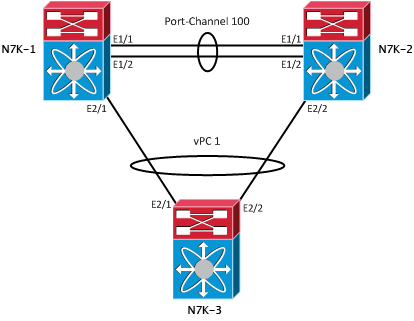
Nexus VPC configuration between switches


Nexus Virtual Port Channel (vPC)

The Nexus 7000 and 5000 series have taken port-channel functionality to the next level by enabling port-channels to exist between links that are connected to different devices. Virtual Port Channels (vPCs) were introduced in NX-OS v4.1(4). vPCs offer better bandwidth utilization while allowing for device level redundancy with faster convergence times compared to multiple port-channels using spanning tree. vPCs also eliminate the need for spanning tree blocked ports.
The vPC Domain
vPCs are configured by associating two Nexus switches (Nexii?) into a vPC domain. Within that domain information is exchanged across two special link types. The vPC peer-keepalive link provides heartbeating between the vPC peers to ensure that both devices are online — preventing any active/active (split-brain) scenarios that could present loops into the topology. The vPC peer link is used to exchange state information between the vPC peers. It also provides additional mechanisms that can detect and prevent any split-brain circumstances.
Description: https://routerjockey.com/wp-content/uploads/2011/02/vPC.png


vPC Configuration:
Our first step here is to enable the vPC feature on N7k-1 and -2.
N7k-1# conf t
Enter configuration commands, one per line.  End with CNTL/Z.
N7k-1(config)# feature vpc
Once complete, we can create our VRF for the VPC keepalive, and test its connectivity.
N7k-1(config)# vrf context vpc-keepalive
N7k-1(config-vrf)# int eth 2/10
N7k-1(config-if)# no switchport
N7k-1(config-if)# vrf member vpc-keepalive
N7k-1(config-if)# ip add 10.1.2.1 255.255.255.252
N7k-1(config-if)# no shut
!
N7k-2(config)# vrf context vpc-keepalive
N7k-2(config-vrf)# int eth 2/10
N7k-2(config-if)# no switchport
N7k-2(config-if)# vrf member vpc-keepalive
N7k-2(config-if)# ip add 10.1.2.2 255.255.255.252
N7k-2(config-if)# no shut
!
N7k-1# ping 10.1.1.2 vrf vpc-keepalive
PING 10.1.1.2 (10.1.1.2): 56 data bytes
64 bytes from 10.1.1.2: icmp_seq=0 ttl=254 time=1.24 ms
64 bytes from 10.1.1.2: icmp_seq=1 ttl=254 time=0.941 ms
64 bytes from 10.1.1.2: icmp_seq=2 ttl=254 time=0.808 ms
64 bytes from 10.1.1.2: icmp_seq=3 ttl=254 time=0.817 ms
64 bytes from 10.1.1.2: icmp_seq=4 ttl=254 time=0.816 ms

--- 10.1.1.2 ping statistics ---
5 packets transmitted, 5 packets received, 0.00% packet loss
round-trip min/avg/max = 0.808/0.924/1.24 ms
We can now assign this as our vPC domain’s peer-keepalive link and verify that it is working.
N7k-1(config)# vpc domain 1
N7k-1(config-vpc-domain)# peer-keepalive destination 10.1.1.2 source 10.1.1.1 vrf vpc-keepalive
!
N7k-2(config)# vpc domain 1
N7k-2(config-vpc-domain)# peer-keepalive destination 10.1.1.1 source 10.1.1.2 vrf vpc-keepalive
!
N7k-1# show vpc
                (*) - local vPC is down, forwarding via vPC peer-link

vPC domain id                   : 1
Peer status                     : peer link not configured
vPC keep-alive status           : peer is alive                
Configuration consistency status: failed
Configuration consistency reason: vPC peer-link does not exist
vPC role                        : none established                    
Number of vPCs configured       : 0  
Peer Gateway                    : Disabled
Dual-active excluded VLANs      : -
Since our vPC keep-alive is working, we can move on to configuring the peer-link. Which, as shown in the diagram is made across Port-Channel 100. First we’ll define the Port-Channel, then configure it as the vpc peer-link.
N7k-1(config)# int ethernet 1/1 - 2
N7k-1(config-if-range)# channel-group 100 on
N7k-1(config-if-range)# interface port-channel 100
N7k-1(config-if)# switchport
N7k-1(config-if)# switchport mode trunk
N7k-1(config-if)# vpc peer-link
Please note that spanning tree port type is changed to "network" port type on vPC peer-link.
This will enable spanning tree Bridge Assurance on vPC peer-link provided the STP Bridge Assurance (which is enabled by default) is not disabled.
!
N7k-2(config)# int ethernet 1/1 - 2
N7k-2(config-if-range)# channel-group 100 on
N7k-2(config-if-range)# interface port-channel 100
N7k-2(config-if)# switchport
N7k-2(config-if)# switchport mode trunk
N7k-2(config-if)# vpc peer-link
Please note that spanning tree port type is changed to "network" port type on vPC peer-link.
This will enable spanning tree Bridge Assurance on vPC peer-link provided the STP Bridge Assurance (which is enabled by default) is not disabled.
!
N7k-1# show vpc
                (*) - local vPC is down, forwarding via vPC peer-link

vPC domain id                   : 1
Peer status                     : peer adjacency formed ok
vPC keep-alive status           : peer is alive             
Configuration consistency status: success
vPC role                        : primary                    
Number of vPCs configured       : 0  
Peer Gateway                    : Disabled
Dual-active excluded VLANs      : -
vPC Peer-link status
---------------------------------------------------------------------
id   Port   Status Active vlans   
--   ----   ------ --------------------------------------------------
1    Po100   up     1-20,100
Now we’re finally able to add our ports to the vPC itself.
N7k-1(config)# interface eth2/1
N7k-1(config-if)# channel-group 1 mode active
N7k-1(config-if)# no shutdown
N7k-1(config-if)# interface port-channel 1
N7k-1(config-if)# switchport
N7k-1(config-if)# switchport mode trunk
N7k-1(config-if)# vpc 1
!
N7k-2(config)# interface eth2/2
N7k-2(config-if)# channel-group 1 mode active
N7k-2(config-if)# no shutdown
N7k-2(config-if)# interface port-channel 1
N7k-2(config-if)# switchport
N7k-2(config-if)# switchport mode trunk
N7k-2(config-if)# vpc 1
!
N7k-1# show vpc 1

vPC status
----------------------------------------------------------------------
id   Port   Status Consistency Reason                     Active vlans
--   ----   ------ ----------- -------------------------- ------------
1    Po1   up     success     success                       1-20, 100
The final step in all of this is to configure the port-channel on the third switch. This is configured as a normal port channel, no special configuration options are needed. In fact, the third switch can be of any type (6509, 3750, etc).
N7k-3(config)# int ethernet 2/1 - 2
N7k-3(config-if-range)# channel-group 1 on
N7k-3(config-if-range)# interface port-channel 1
N7k-3(config-if)# switchport
N7k-3(config-if)# switchport mode trunk